Read: 11 - Assorted Topics
Images
Controlling sizes ofn images in CS
You can control the size of an image using the width and height properties in CSS, just like you can for any other box.
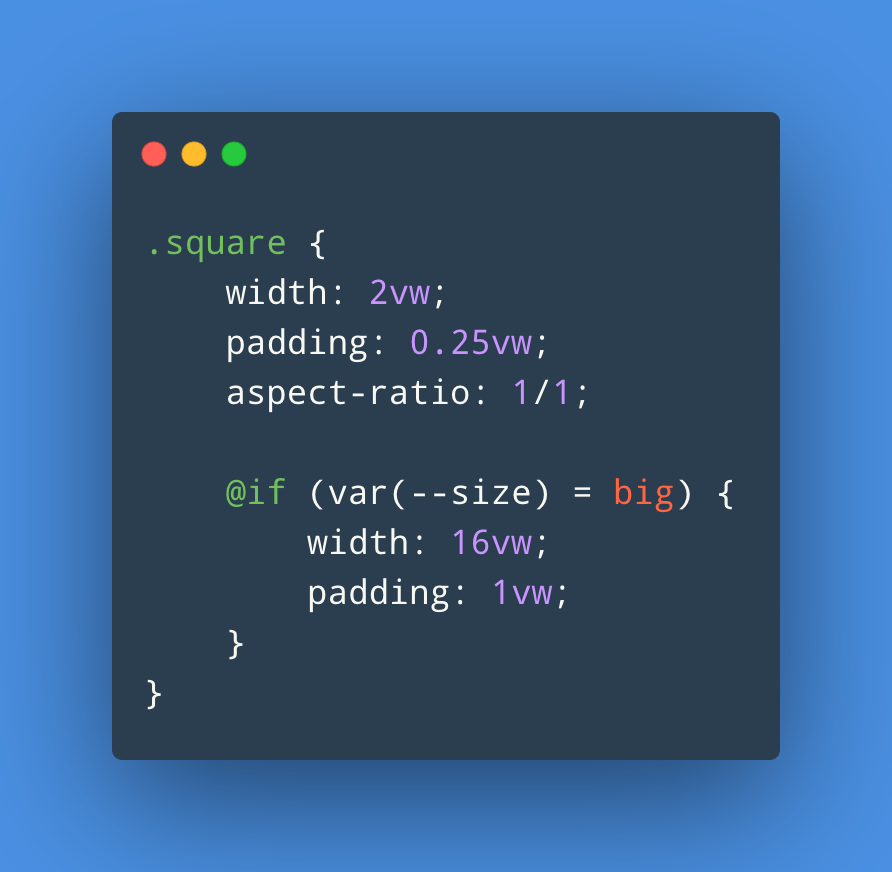
First you need to determine the sizes of images that will be used commonly throughout the site, then give each size a name.
For example:
- small
- medium
- large
AligNi ng images Using CSS
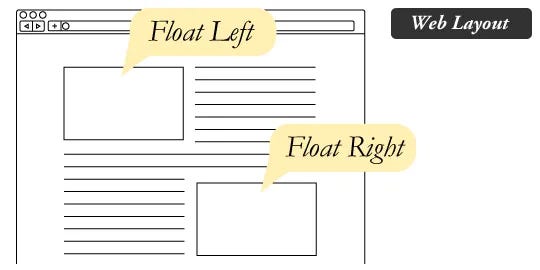
In the last chapter, you saw how the float property can be used to move an element to the left or the right of its containing block, allowing text to flow around it.
Rather than using the <img> element’s align attribute, web page authors are increasingly using the float property to align images. There are two ways that this is commonly achieved:
2-The float property is added to the class that was created to represent the size of the image
3- New classes are created with names such as align-left or align-right to align the images to the left or right of the page. These class names are used in addition to classes that indicate the size of the image.
Centering images Using CSS
Once it has been made into a block-level element, there are two common ways in which you can horizontally center an image:
1- On the containing element, you can use the text-align property with a value of center.
2- On the image itself, you can use the use the margin property and set the values of the left and right margins to auto.
Background Images
The background-image property allows you to place an image behind any HTML element. This could be the entire page or just part of the page. By default, a background image will repeat to fill the entire box.
example :
body { background-image: url(“images/pattern.gif”);}
Repeating Images
background-repeat background-attachment
The background-repeat property can have four values:
- repeat
- The background image is repeated both horizontally and vertically (the default way it is shown if the backgroundrepeat property isn’t used).
- repeat-x
- The image is repeated horizontally only (as shown in the first example on the left).
- repeat-y
- The image is repeated vertically only. no-repeat
- The image is only shown once. The background-attachment property specifies whether a background image should stay in one position or move as the user scrolls up and down the page. It can have one of two values: fixed
- The background image stays in the same position on the page. scroll
- The background image moves up and down as the user scrolls up and down the page.
Background Position
background-position
This property usually has a pair of values. The first represents the horizontal position and the second represents the vertical.
- left top
- left center
- left bottom
- center top
- center center
- center bottom
- right top
- right center
- right bottom
Summary IMAGES
- You can specify the dimensions o XX f images using CSS.This is very helpful when you use the same sized images on several pages of your site.
- Images can be aligned both horizontally and vertically using CSS.
- You can use a background image behind the box created by any element on a page.
- Background images can appear just once or be repeated across the background of the box.
- You can create image rollover effects by moving the background position of an image.
- To reduce the number of images your browser has to load, you can create image sprites.
Practical Information
Search Engine optimization (SEO)
SEO is a huge topic and several books have been written on the subject. The following pages will help you understand the key concepts so you can improve your website’s visibility on search engines.
- The Basics
- On-Page Techniques
- Off-Page Techniques
On-Page SEO
In every page of your website there are seven key places where keywords (the words people might search on to find your site) can appear in order to improve its findability.
- Page Title
- URL / Web Address
- Headings
- Text
- Link Text
- Image Alt Text
- Page Descriptions

How to Identify Keywords and Phrases
Determining which keywords to use on your site can be one of the hardest tasks when you start to think about SEO. Here are six steps that will help you identify the right keywords and phrases for your site.
1- Brainstorm
2- Organize
3- Research
4- Compare
5- Refine
6-Map
How Many People Are Coming to Your Site?
The overview page gives you a snapshot of the key information you are likely to want to know. In particular, it tells you how many people are coming to your site.
- Visits
- This is the number of times people have come to your site. If someone is inactive on your site for 30 minutes and then looks at another page on your site, it will be counted as a new visit.
- Unique Visits
- is the total number of people who have visited your site over the specified period. The number of unique visits will belower than the number of visits if people have been returning to your site more than once in the defined period.
- Page Views The total number of pages all visitors have viewed on your site.
- Pages per Visit
- The average number of pages each visitor has looked at on your site per visit.
- Av erage Time on Site The average amount of time each user has spent on the site per visit. Date Selector
- Using the date selector in the top right hand corner of the site, you can change the period of time the reports display. When you log , this is usually set to the last month, but you can change it to report on a specific time period. Export
- The export link just above the title that says “visitors overview” allows you to export the statistics on this page for other applications such as Excel.
## What Are Your Visitors Looking At? ### The content link on the left-hand side allows you to learn more about what the visitors are looking at when they come to your site.
- Pages
- Landing Pages
- Top Exit Pages
- Bounce Rate
Summary PRACTICAL INFORMATION
- Search engine optimization h XX elps visitors find your sites when using search engines.
- Analytics tools such as Google Analytics allow you to see how many people visit your site, how they find it, and what they do when they get there.
- To put your site on the web, you will need to obtain a domain name and web hosting.
- FTP programs allow you to transfer files from your local computer to your web server.
- Many companies provide platforms for blogging, email newsletters, e-commerce and other popular website tools (to save you writing them from scratch).